Company listing page upgrade
Minor Upgrade
❗ Important: This feature is currently in Early Availability (EA) status.
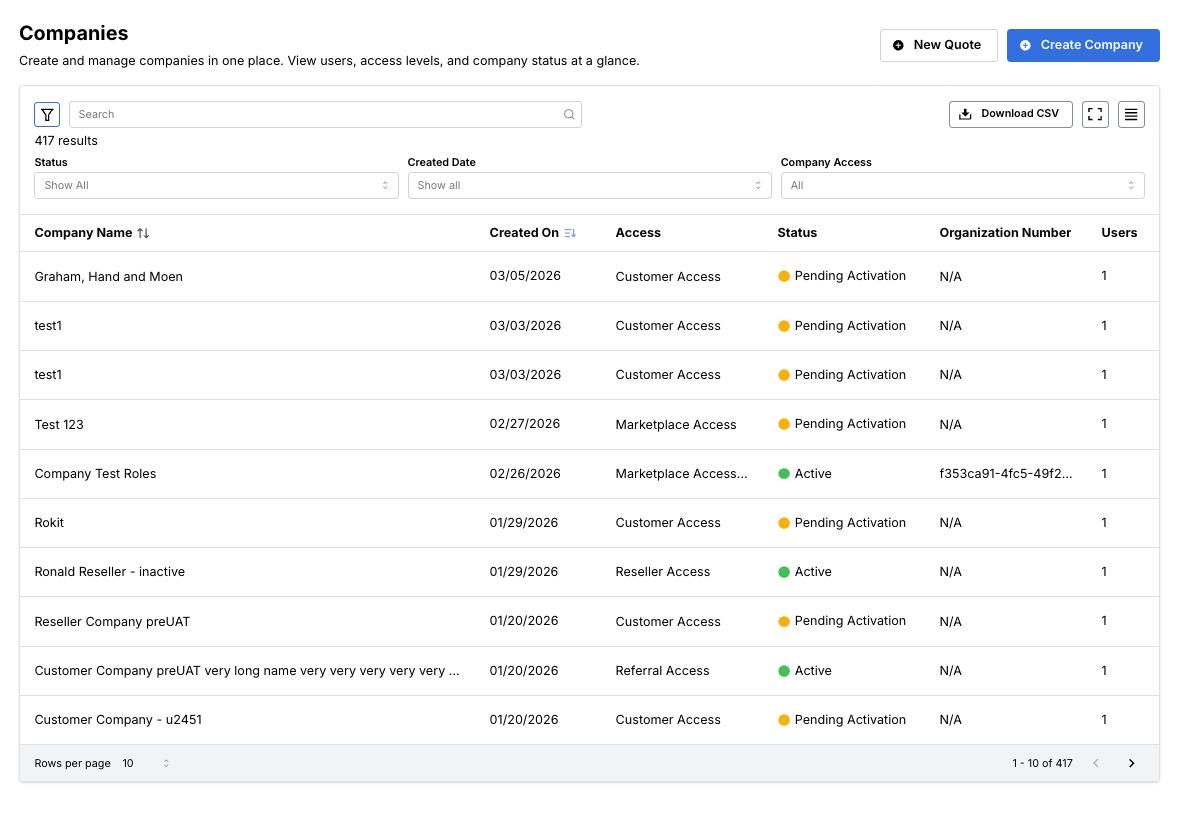
With this release, the Company Listing Page is being upgraded from its legacy IPA-based design to a modern Micro UI built on the Mantine framework. This update improves the user experience while maintaining full backward compatibility.
The buttons, columns, filters, and row links are displayed based on the current user's role. The roles that can access this new Micro UI are:
- Sales Support
- Reseller
- Reseller Manager
- Marketplace Manager
- Network Manager
Key highlights:
Marketplace managers, Resellers and Reseller managers can manage and customize their data view using the following features:
-
View company details - The list page table displays the following information:
- Company Name — Displays the name of the company.
- Created On — Displays the date on which the company is created.
- Access — Displays the access that the company has (for example, Customer Access, Marketplace Access, Reseller Access or Referral Access).
- Status — Displays if the company is active or if activation is pending.
- Organization Number — Displays the ID provided by the customer.
- Users — Displays the number of users in the company.
-
Filter the list by Status, Date Range, and Company Access to make it easier to manage high volumes of data.
📝 Note: The Company Access filter is not available to Resellers and Reseller Managers.
-
Reset all filters to their initial defaults by clicking the Clear All button.
-
Increase or decrease the number of rows displayed using the row count selector. The options available are 5 rows, 10 rows, and 20 rows per page.
-
New density icon allows you to toggle the table layout instantly between three views:
- Spaced: Maximum legibility and breathing room.
- Normal: The standard balanced view.
- Compact: High-density view to see more data on screen at once.
-
Tables now clearly display key attributes including company name, creation date, and status.
-
Click Company Name or Created On to sort data in ascending or descending order.
-
Click on the full-screen icon to expand the workspace and focus entirely on company management.
-
Download reports — You can click the download button to download the report in CSV format.
-
You can also create a new company and a new quote from the Companies list page.
📝 Note: The "New Quote" button is conditional: hidden for Reseller Manager and Network Manager roles; shown for Reseller, Sales Support and Marketplace Manager. The Create Company button is always visible. However, the page that opens when clicking it is based on the user's role.
UI updates:
Feature enablement
This feature is not enabled by default. Contact your AppDirect technical representative to request it.
Setting enablement
No setting enablement is required.
Documentation
Documentation will be updated with the release.
Was this page helpful?
Tell us more…
Help us improve our content. Responses are anonymous.
Thanks
We appreciate your feedback!